For the complete documentation index, see llms.txt. Markdown versions of all docs pages are available by appending .md to any docs URL.
Set up and customize traces
Configure tracing in agentgateway: enable OTLP export, set up authentication and TLS, control the sampling rate, filter spans, and customize span attributes.
Agentgateway natively exports distributed traces over OTLP (OpenTelemetry Protocol). Traces include HTTP, MCP, and LLM spans with attributes that follow the OpenTelemetry semantic conventions for generative AI.
Enable tracing
To enable tracing in agentgateway, add a tracing block under the frontendPolicies section and point agentgateway to your OTLP-compatible backend. For sample tracing backend setups, see Sample tracing configurations.
You can enable tracing in the UI or in your configuration file.
Whether the UI can save depends on your storage mode. For more information, see Save changes from the UI.
Open the Settings > Observability page, such as http://localhost:15000/ui/settings/observability.
Click the Tracing card.
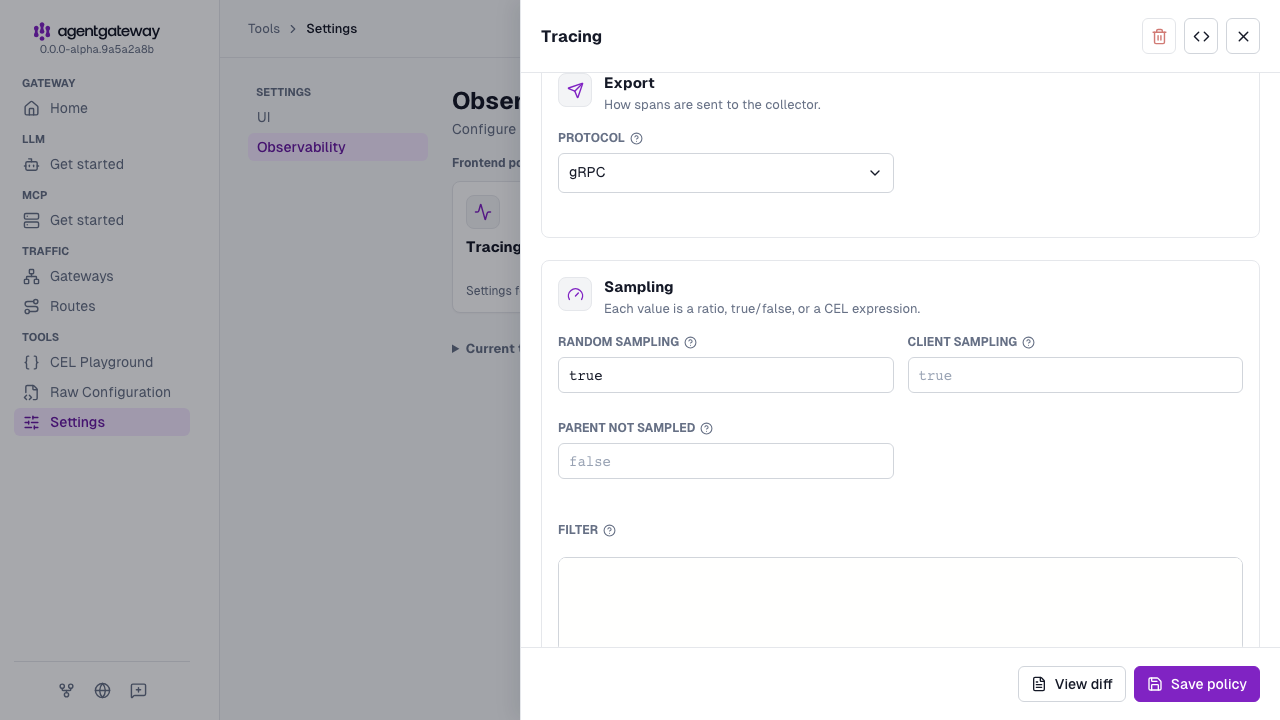
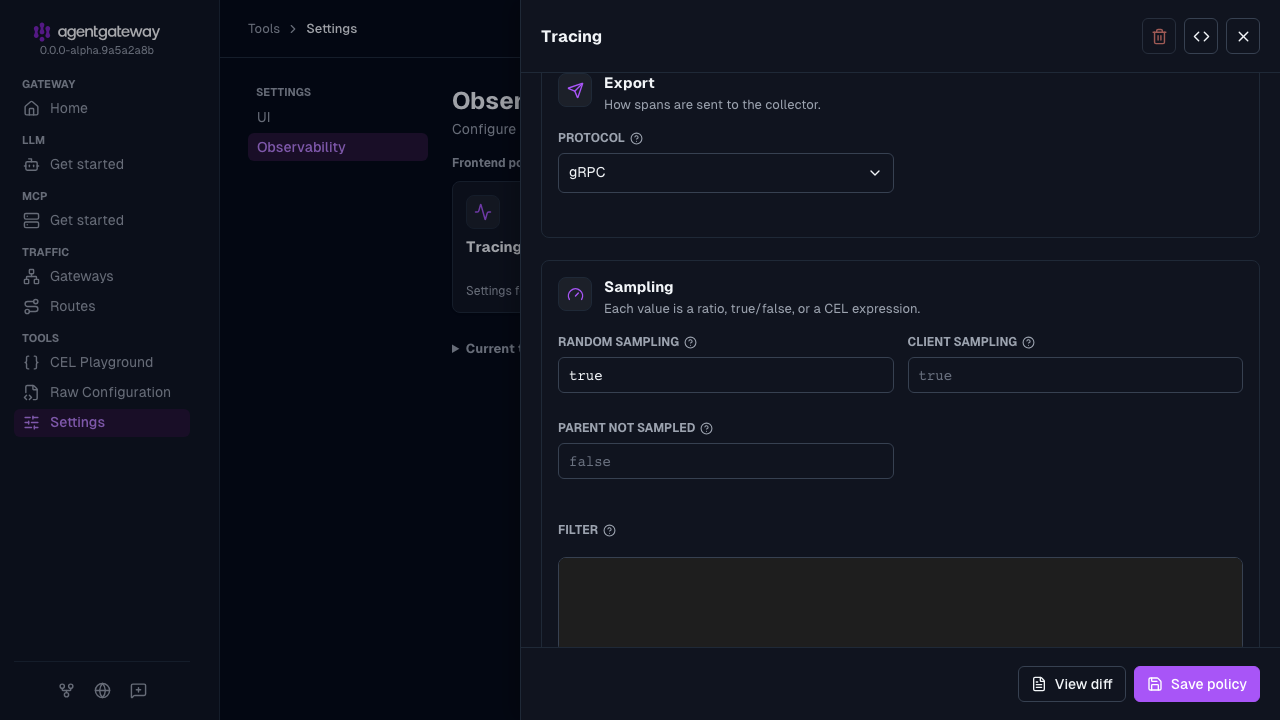
In the Tracing drawer, configure the following fields.
- Host: Enter the hostname and port of the OTLP receiver, such as
localhost:4317. - Protocol: Keep gRPC. The UI does not write the default
protocol: grpcvalue to your configuration. - Random sampling: Enter
true.
- Host: Enter the hostname and port of the OTLP receiver, such as
Click Save policy. The Tracing card shows enabled.
The UI saves the policy under frontendPolicies.tracing in your configuration.
| Field | Description |
|---|---|
host | Hostname and port of the OTLP receiver. The value depends on your agentgateway installation method. For more information, see Sample tracing backend configurations. |
randomSampling | true to sample every request, or a decimal between 0 and 1 for a percentage (for example, 0.1 for 10%). Defaults to false (no new traces initiated). For more information, see Control sampling rate. |
Set up authentication and TLS
When connecting to an OTLP backend that requires authentication, such as a SaaS observability platform, use the policies.requestHeaderModifier section to add required authentication headers and policies.backendTLS to enable TLS for the connection. You can set them in the UI or in your configuration file.
Whether the UI can save depends on your storage mode. For more information, see Save changes from the UI.
- Open the Settings > Observability page, such as http://localhost:15000/ui/settings/observability, and click the Tracing card.
- In the Tracing drawer, configure the following fields.
- Host: Enter the hostname and port of your OTLP backend, such as
<your-otlp-endpoint>.com:443. - Backend policies: Enter the following YAML to enable TLS and set the authentication header.
backendTLS: {} requestHeaderModifier: set: Authorization: "Basic <api-key>" - Protocol: Select HTTP. If your backend uses a path other than the default, enter it in the Path field.
- Random sampling: Enter
true.
- Host: Enter the hostname and port of your OTLP backend, such as
- Click Save policy.
For a complete example, see the Langfuse integration.
| Field | Description |
|---|---|
policies.requestHeaderModifier.set | Headers to set on every OTLP export request. Use this to pass API keys or auth tokens to your backend. |
policies.backendTLS | TLS settings for the backend connection. Set to {} to use TLS with system CAs (required for public HTTPS endpoints). |
Control sampling rate
Use the randomSampling setting to control the fraction of requests for which spans are exported. Set randomSampling: true to sample 100% of requests, or provide a decimal between 0 and 1 for a percentage.
Three sampling settings decide whether a request is traced, and which one applies depends on the incoming request.
| Setting | Applies when | Default |
|---|---|---|
randomSampling | The incoming request does not already carry a trace, so agentgateway must decide whether to start one. | false |
clientSampling | The incoming request has a sampled traceparent (the sampled flag is 01). | true |
parentNotSampled | The incoming request has an unsampled traceparent (the sampled flag is 00). | false |
Only one setting applies to each request. Because clientSampling defaults to true, agentgateway continues sampled client traces even when randomSampling is false. An unsampled parent is respected by default. Set parentNotSampled: true to trace those requests anyway and propagate a sampled flag (01) upstream. Each setting accepts true, false, or a sampling fraction between 0 and 1.
In the following example, you want to sample 10% of requests.
- Open the Settings > Observability page, and click the Tracing card.
- In the Sampling section, enter
0.1for Random sampling. - Optional: Enter a value for Client sampling or Parent not sampled. Each field accepts
true,false, or a sampling fraction. - Click Save policy.
Filter spans
Use the filter field to write a CEL expression that controls which sampled spans are exported. A span is exported only when the expression evaluates to true. The filter runs after sampling, so it evaluates spans selected by any of the three sampling settings.
The following example exports only spans for requests with an HTTP response code of 400 or greater.
Open the Settings > Observability page, and click the Tracing card.
In the Sampling section, enter
response.code >= 400in the Filter field.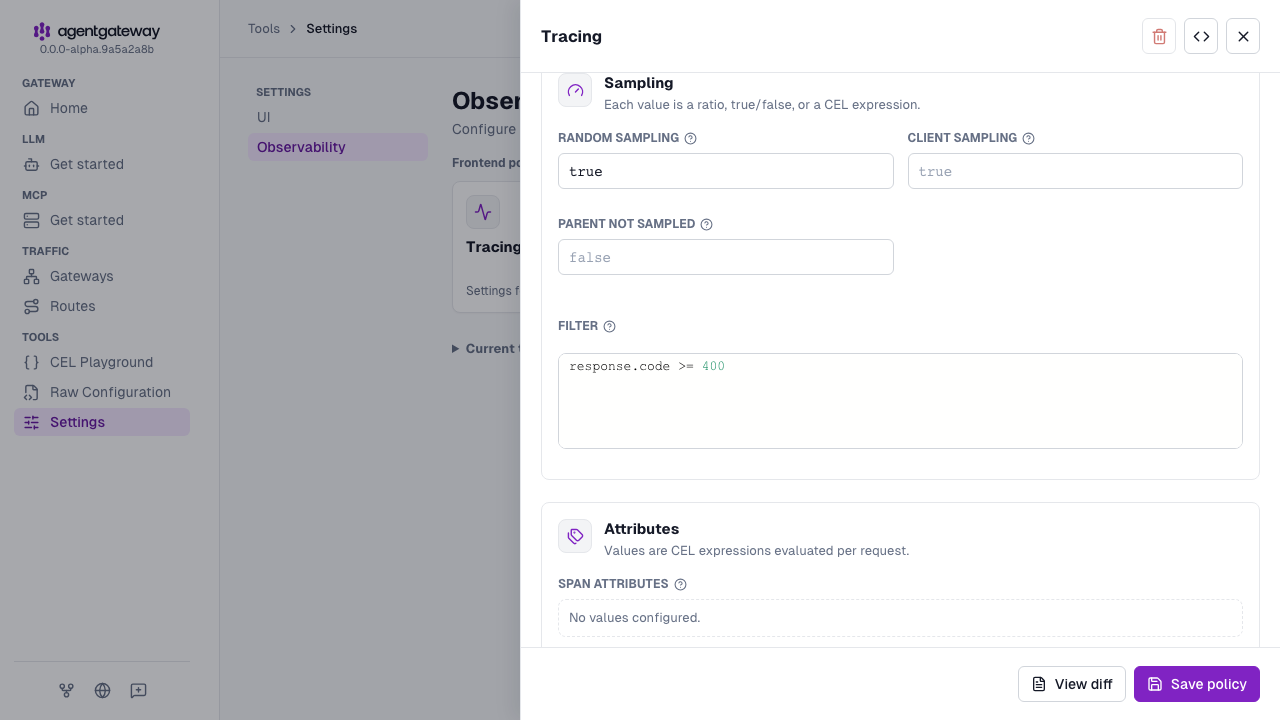
Click Save policy.
You can combine conditions to export specific traffic. The following examples show common filter patterns:
| Goal | CEL expression |
|---|---|
| Export only errors | response.code >= 400 |
| Export only LLM requests | gen_ai.provider != "" |
| Export by user | request.headers["x-user-id"] == "user-123" |
| Export errors or slow requests | response.code >= 400 || duration > 5000 |
For the full list of available CEL variables, see the CEL variables reference.
Customize span attributes
Agentgateway emits standard OpenTelemetry attributes as shown in Default span attributes. You can add custom attributes to your spans or remove default ones. Note that customizing span attributes does not work on policy call child spans. For more information, see Policy call child spans.
Add span and resource attributes
Use the attributes field to add custom tags to individual spans. Attribute values are evaluated as CEL expressions on every request, so they can be dynamic. For example, you can use a CEL expression to add the user ID from a request header or the HTTP response code.
Use the resources field to describe the agentgateway process itself. Resource values are static values that are added to every span. For example, you can add the name of the agentgateway process, the environment it runs in, what version it is. Your tracing backend uses resource attributes to label and group spans in its service list. The most common resource attribute is service.name, which sets the name that is displayed in your tracing backend. It defaults to agentgateway if not set.
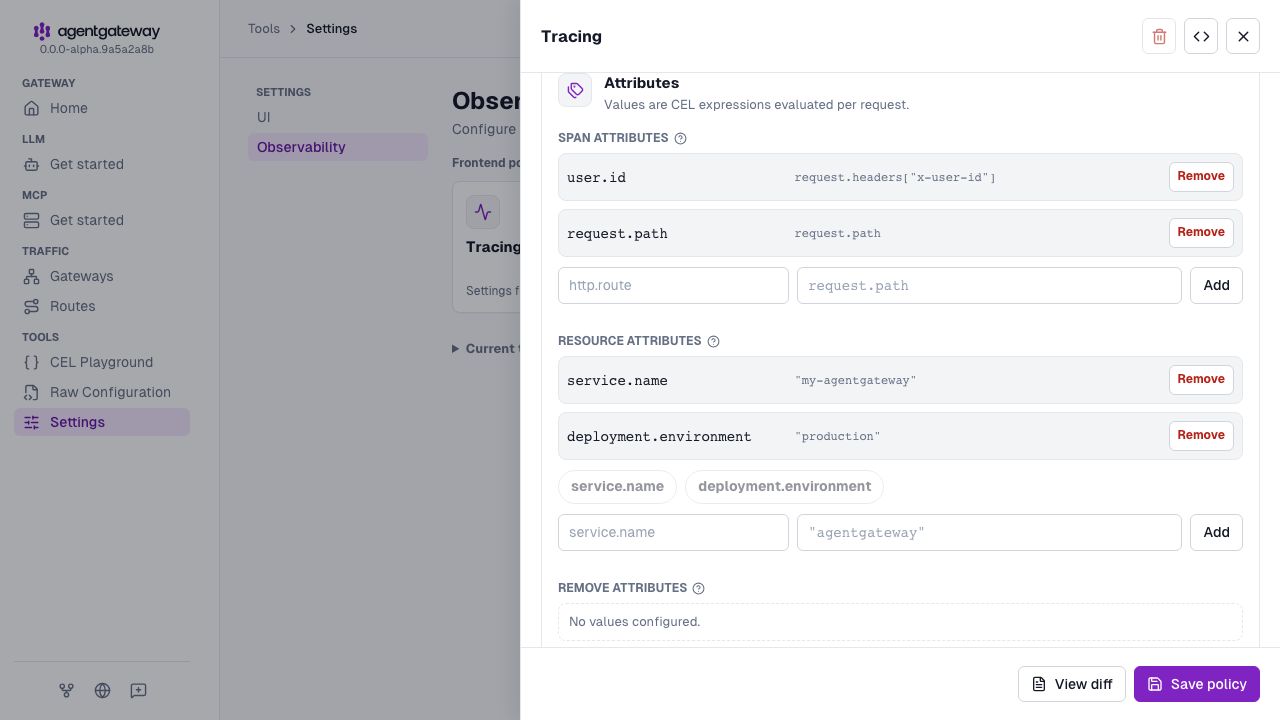
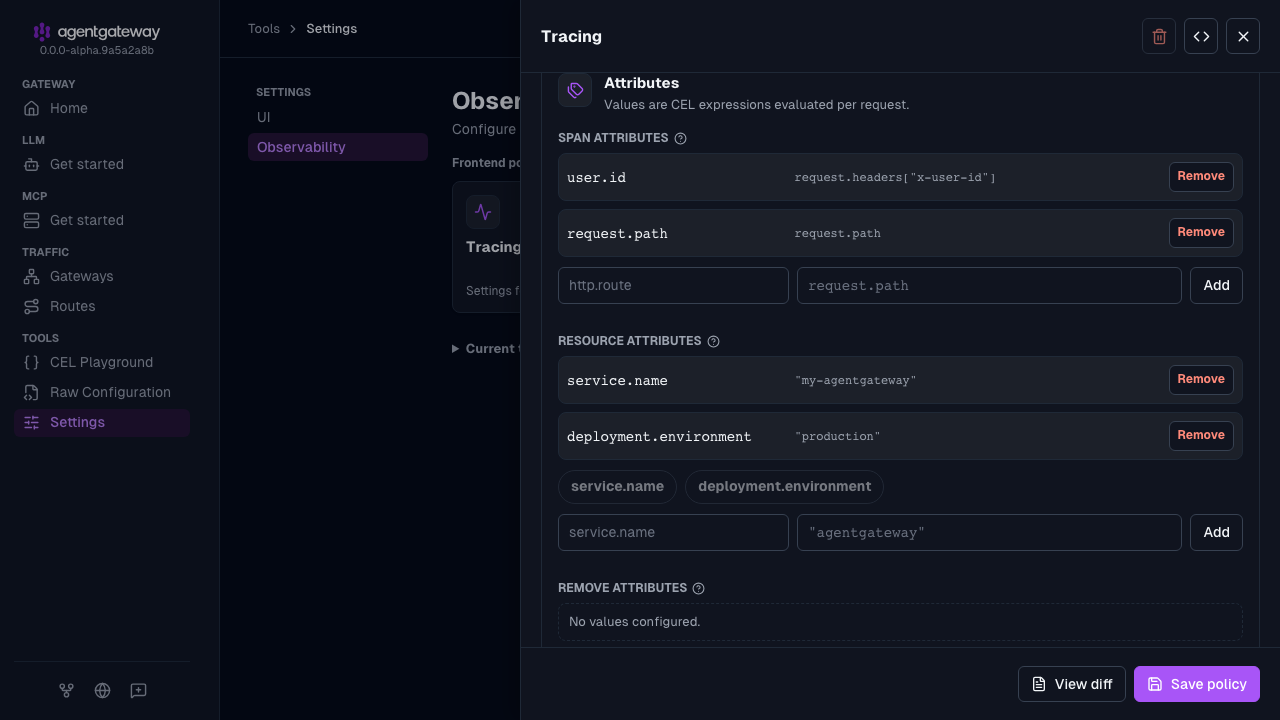
The following example sets a custom service name and deployment environment in resources, and adds the user ID and request path to each individual span by using attributes.
Open the Settings > Observability page, and click the Tracing card.
In the Attributes section, add the resource attributes.
- Under Resource attributes, click service.name, enter
"my-agentgateway"as the value, and click Add. Keep the double quotes, because the value is a CEL string. - Click deployment.environment, enter
"production"as the value, and click Add.
- Under Resource attributes, click service.name, enter
Under Span attributes, add the span attributes.
- Enter
user.idas the name andrequest.headers["x-user-id"]as the value, and click Add. - Enter
request.pathas the name andrequest.pathas the value, and click Add.
- Enter
Click Save policy.
Remove span attributes
Use the remove field to drop attributes from spans before your attributes expressions are applied. This setting is useful for stripping default attributes that are redundant or that you do not want to export.
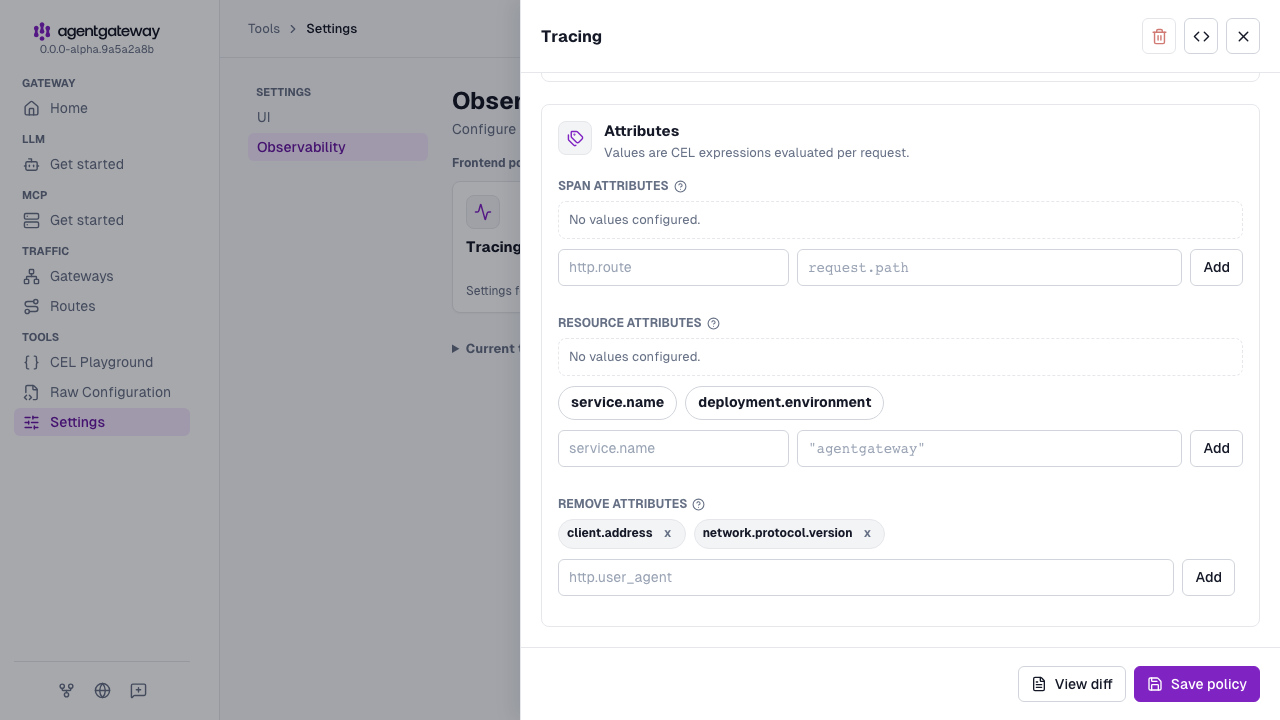
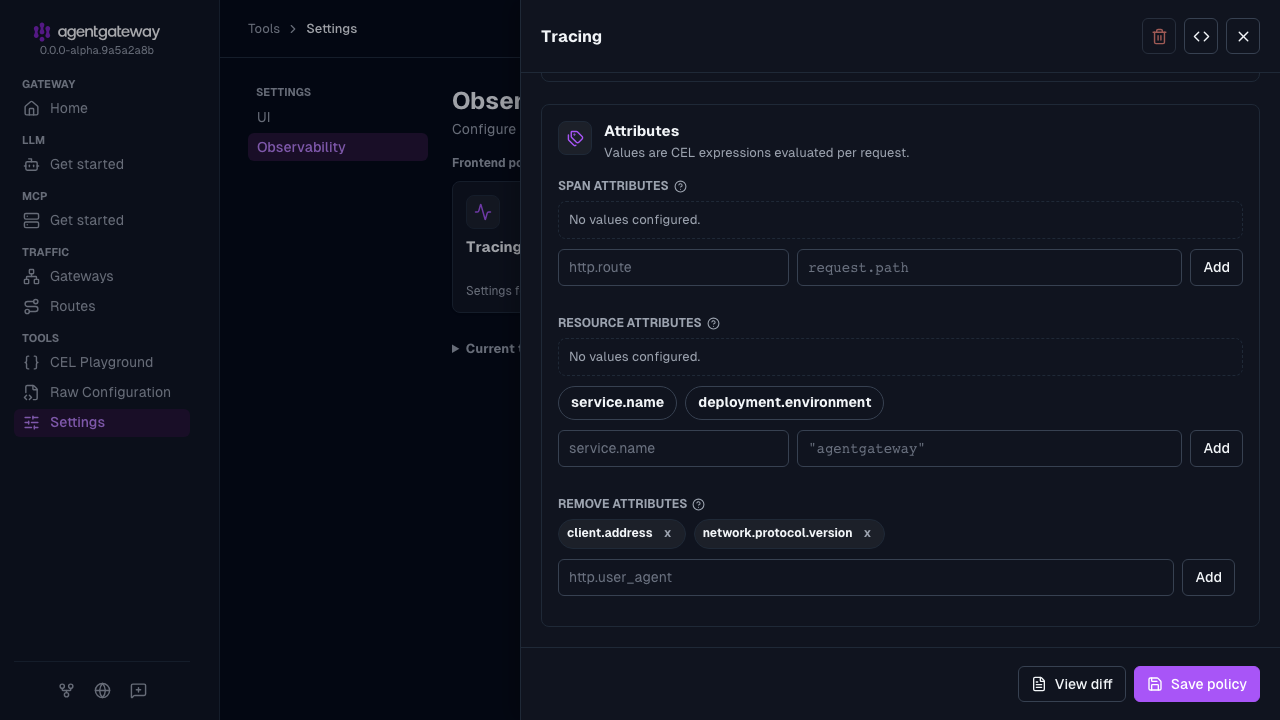
The following example removes the HTTP protocol version and client address from the span. The remove list matches the attribute names on the request span, as listed in Default span attributes. A name that is not on the span, such as the earlier src.addr or http.version, removes nothing.
Open the Settings > Observability page, and click the Tracing card.
In the Attributes section, add each attribute to Remove attributes.
- Enter
client.address, and click Add. - Enter
network.protocol.version, and click Add.
- Enter
Click Save policy.